Tuesday, January 21, 2020

Explain Yourself! Over, and Over Again

 Ever feel like you are wasting time explaining directions over and over again for students?

Today's Techspot may have a solution for you!

Solution #1: Screencasting 

This morning, I had a question from a student in our virtual academy on how to complete and submit a particular assignment.  After already hitting the point of frustration, the last thing this student would have wanted was an email with a narrative set of steps of what to do.  Faster than I could have typed it out, I used my Screencastify Chrome Extension to create a video that she could pause, rewatch or fast forward as needed with the automatically produced url.  The best part is now I have a video to share, if/when another student has a similar issue. See the Techspot's past blogpost on screencasting by clicking HERE. 


Solution #2: Interactive Image Tutorials

On Friday I assigned a multi-step assignment where students would be figuring out if it is cheaper to make empanadas at home, or to go out and buy them in a restaurant. I formatted the tasks, links and reflection questions into a table on a Google Doc.  Instructions were given in class, but as you can imagine many things get "lost in translation" here in room 409.  Instead of typing a narrative of directions to reference in Google Classroom, I recalled a post that I had saved from Alice Keeler, of Teacher Tech on creating Interactive Graphics with Genial.ly  In just a few minutes I had the interactive tutorial below linked to the assignment in Google Classroom. 
For teachers already familiar with Thinglink, you may want to create your interactive image there.  The only difference I can see is that you may have a limited number of "views" with the free plan of Thinglink.(e.g 1000)  Also, a paid account is required for students to create content.  Click HERE to the same interactive image on Thinglink.


Like Genial.ly? 


Genially offers a variety of projects that students can create as well!  They can embed interactive images and videos into their current presentations, or create stand alone interactive projects.  Send one of your students who is seeking something more to genial.ly to see what they come up with!

Tuesday, January 14, 2020

Schedule Send in Gmail

On Friday afternoon, I remembered I had a question for a colleague.  I was hesitant to compose the message, worried that it would be buried in their inbox on Monday morning.   However, I also wanted it off of my personal To-Do list as Monday morning was going to be busy enough.

Thanks to Gmail's "schedule send" feature, I was able to write the email and have it delivered at 8am on Monday to my co-worker.

Click the arrow next to Send to schedule your message!  


See a full set of instructions on support.google.com by clicking HERE.


Tuesday, January 7, 2020

Add Audio to Google Slides

Student-created Google Slides presentations at SMASD are becoming more and more powerful by the addition of graphs, images and videos.

We have also seen the power of hyperlinking objects to make slides interactive:

- 5th Grade History "Guess Who?" Postcards
- 6th Grade ELA Book Reports
- 7th and 8th Grade Math - Choose Your Own Adventure Stories
- HS Anatomy Heart Amusement Park Projects

Lately there also has been the power of recording narration via screencast videos. Now students can efficiently complete peer reviews without a week of classtime lost to individual presentations.

- 7th Grade Holocaust Survivor Projects
- 8th Grade <<Mi Familia>> Photo Album Presentations

Up until now, adding audio to our Google Slides was only available via this Screencast method.

The tool is wonderful, but has some limitations with editing and collaboration. For example, you have to record the entire presentation at once, and there is little room for editing.  Also it doesn't allow for a full class or small group collaboration on a slidedeck where each student can narrate his/her own slides.

But the wait is over... Google Slides > Insert > Audio is HERE!!!

I can't explain it better than fellow Google Trainer Eric Curts does in his blogpost at controlaltachieve.com. Feel free to share the post with your students or the tutorial below if they need specific instructions.

The key points to remember are:

- Record the audio for each slide and save it to Google Drive
- Allow sharing perimissions on the audio file
- Set the audio to automatically play when slide is opened, if desired
- Set slides to auto advance if desired

See the slidedeck that I've created to share with your students who would like to add audio.    Just add THIS LINK to Google Classroom with the project.  They can listen and follow the instructions!  No need for you to teach the tech.


Tuesday, December 17, 2019

He's Makin' a List & Checking It Twice....

Need to mark off who is naughty or nice?   Or perhaps all of your holiday break to-dos?

Here are three Google options for you!


Google Keep 


Google Tasks


Don't forget to double check all of your blessings too!  Have a great holiday break everyone!


Tuesday, December 10, 2019

Have a favorite font? - Make it a Default!


What are your "go-to" fonts in Google Docs? 

Wouldn't it be nice to have your most-used font as your default? 

Mine is now set to Cabin.  
See the steps below to change your Google Doc font to one of your favorite fonts!

1. Open a Doc and Choose your New Font Style, Size Etc.

2. Type some text and highlight it.

3. Select > Format > Paragraph Styles > Normal Text > Update Normal Text to Match


4. Select > Format > Paragraph Styles > Options > Save as my Default Styles

5. Open a New Doc and See if the Default Font has Changed.


Enjoy typing in your favorite font! Let me know if you have any questions!

Tuesday, November 26, 2019

Thankful for Rubrics

More in more in my teaching I have been finding the need to communicate detailed feedback to my students.  Simply marking items wrong on a test is not the only way I want to communicate to my students how they are growing.   I would love to turn the grading game into one of "leveling up" rather than "knocking down".

For this very reason many of us are incorporating performance assessments into our evaluation strategy toolbox. Rubric scoring can give more of a sense of achievement in its nature to see one acquiring skills rather than being knocked down by missed test questions.

For years I knew that rubrics were the tool I wanted to use to assess my students, but there was always some part of their development or employment that left a bad taste in my mouth.   Sometimes they just took too long to make, but premade rubrics were too vague.   I would get frustrated as well when the math just did not work out in the student's favor.  In addition they would often establish a "ceiling" to some of our best students.

As I continue to design, implement and revise the rubrics I use in my classroom, I wanted to open up the discussion about how you all battle with fairly evaluating student work.  Additionally I will use this Tech Tuesday to share out some of the resources I have found while taking courses, through blogs and during the ACTFL conference this weekend.   Please use the comments to share other things you have found and work for you in your classrooms.

-----------------------------------------------
For Quick Rubric Design & Personalized Feedback: 
Single-PointThe Single-Column Rubric
Resources:


-----------------------------------------------
To Weigh Categories & Auto-Calculate Scores
Rubric Tab
Resources:


-----------------------------------------------
To Calculate Fair Numerical Grades from your Traditional Rubric
Roobrix
Resources:
*Change your settings so that the "1" has your desired value (e.g. 50%, 60%, 70%).

There are certainly more tools and ideas out there such as Google Forms & Orange Slice.  

Google Classroom is even coming up with their own rubric feature that is currently in beta testing, so be looking forward to that feature as well! 

Comment below with your tips & techniques for rubric scoring. 

As always reach out if you would like me to come and work with you on your next rubric. 

Tuesday, November 19, 2019

NEW Easy Grade Google Form Questions

Google Forms Quizzes are awesome because they:


  • self grade
  • give quick formative assessment data
  •  easy to edit, enhance & adapt
  • can be in "locked" mode on district Chromebooks 
    • Ss cannot access other websites while taking the quiz

And, all was well and fine when questions elicited only one correct response.   However, when an open-ended question was given, teachers were manually scrolling through individual responses or using the spreadsheet to view answers.

Both were cumbersome and time consuming.  Leading us to limit ourselves to DOK Level 1 style questions when using Forms.

But the wait is now over!  

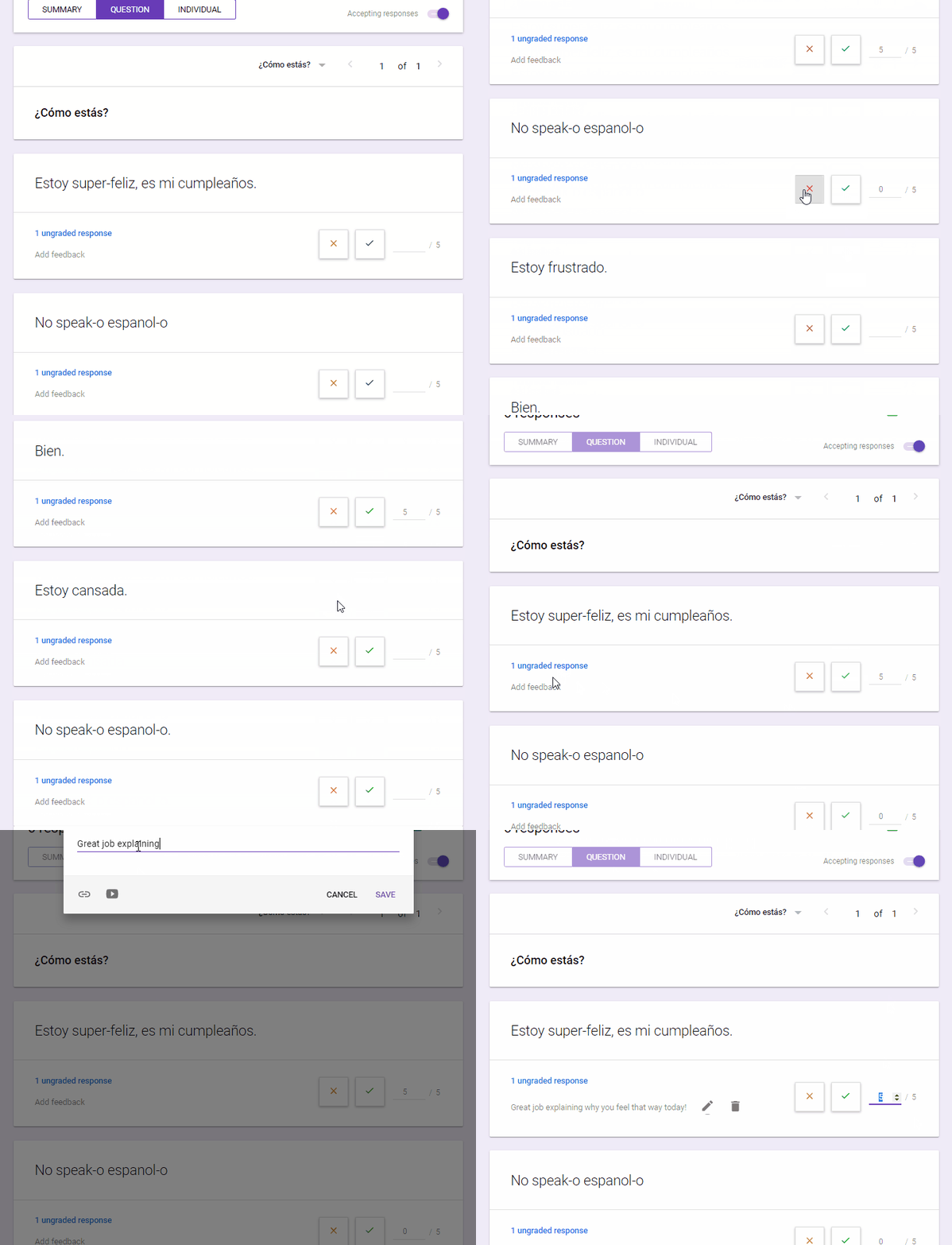
In your Google Form "Quiz" Responses you will notice a new button called "Question".

By choosing "Question" the teacher can grade each open-ended response quickly by going down through the list.  Evaluating all of the class's responses for the same question at once.  
Scores are automatically tallied in the total.  
The grading process is similar to those of Actively Learn and EdPuzzle.

There are options to:
  • quick check "correct" or "incorrect" 
  • give partial credit
  • add feedback


Now go back in those Google Forms and add your Open-Ended questions!  
Analyze., Explain., Predict., Compare., How?, Why?, Elaborate., etc