Tuesday, March 3, 2020

Google Earth Projects

Last year the TechSpot posted about creating Map and Tour projects with Google.

The following applications were presented in the post:


Google My Maps - map with plotted points that offer media & text descriptions

Google Tour Builder - puts the separate points into a narrative sequence

Google Tour Creator - adds the VR feature to the project


Last week at the Pete&C conference, I was asked to talk about the above applications and offer 1 on 1 sessions for teachers as part of the Google Playground experience.

In preparing for the presentation I found that Google recently released a new version of the Google Tour Builder:

Google Earth Projects


Google Earth projects offer the best of Google Earth, while allowing the user to easily narrate a story, trip or adventure.

Google Earth projects, unlike Tour Builder, save to your Google Drive and allow for the collaboration inherently found in other Google Apps. Check out the intro video below to see how your students can start creating with Google Earth. Then, click HERE for a an online how-to guide.  Provide this link to your students who are creating their first project.


Not ready to have students start creating yet?  Want to see some examples? 
Check out Google Earth Voyager.  

There are many pre-made voyages that your class can explore and many come with pre-made classroom activities.


Have an idea for your classroom?  
Contact me and we can get you and your students off and running with Google Earth! 


Tuesday, February 18, 2020

Chromebook 101

Check out the video below to review what we learned in the Chromebook 101 session during last week's inservice, or check it out for the first time if you were unable to attend! 

Some highlights are: 


  • 2:15  How to use the touchpad with 1, 2 or 3 fingers! 
  • 4:24 Keyboard: Top row of keys
  • 7:14  Split screen
  • 8:37 Taskbar, Pinning & Shortcuts
  • 10:08 Screenshots: full & partial
  • 11:10 Caps lock & delete 
  • 12:53 Apps, Add-Ons, Extensions 


Or click here for the slide deck only. 

Have any questions about Chromebooks that weren't answered here? 

Post them below! 


Tuesday, February 11, 2020

I love Google Classroom Rubrics!

Normally in Google Classroom or eSD your students see this:

46/50

But, what does that actually mean?  Where is the feedback?  Teachers have been solving this problem for years with rubrics, and now Google Classroom has joined in!

Imagine if your student now saw this descriptive rubric instead!

Google Classroom Rubrics Feature: 
  • Customizable Criterion
  • Customizable Point Values - Per Criterion!
  • Easy Click & Assess
  • Points Automatically Add Up
  • Ability to Duplicate Criterion & Reuse Rubrics
STUDENT SIDE OF RUBRICS


TEACHER SIDE OF RUBRICS


Check it out, and let me know if I can help you create your first rubric!

Already tried it?  Share the love in a comment below!

Tuesday, February 4, 2020

Google Form Fans, This One's for You!

Google Form Fans, This One's for You!

If Google Forms have become part of your regular routine, you may want to check out some of these time-saving tips.

Make a Google Form from a Spreadsheet.

I always say teacher time is too limited to waste!  Get the most out of your efforts when creating new materials!  This is why I always promote putting vocabulary terms and key unit questions into a spreadsheet first and foremost.  From there you can import them into a variety of online quiz games and assessments.

Google Forms is no different!  And, with the help of Alice Keeler of Teacher Tech you can create a form directly from a spreadsheet.   Go to alicekeeler.com/form to get started.  Copy and paste your questions from your unit spreadsheet or import this one later for a Quizz.izz, Quizlet or Kahoot !

*Be patient with the Add-On menu when you first try it.  It takes a moment to appear on the list.


Import Questions from one Form to Another
Now that you have an easy way to create a Form from Sheets, why not make a "Master Form" for your chapter, unit or novel?   Have the whole department collaborate on a "Question Bank" Form.  No one will really use this form, it will just hold your question inventory!

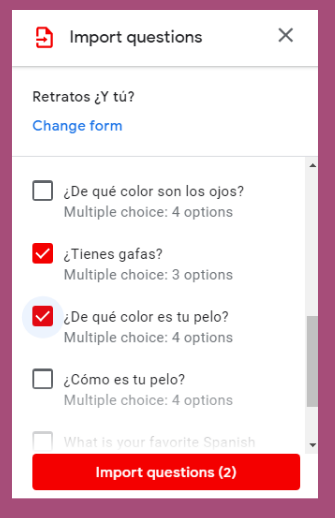
Then, when creating pre-tests, post-test, formative checks, spiral reviews, differentiated quizzes, etc  all you need is one button > Import Question to access your bank of pre-made questions.


Select the "Master Form" and quickly check off the questions you would like to reuse in your comprehension check, exit ticket or summative assessment.  Then POOF you are done, faster than you could have gone to the copier!

Let me know how I can help you make this and other tech work in your classroom or office!


Keep working smarter, not harder SMASD!

Tuesday, January 28, 2020

BoomWriter - Be part of the "process"

One of my on-going themes this year as a teacher, is to give feedback "during the process" rather than at the end of an assignment.  Life is not one and done, and neither is learning.

Google Classroom & Google Doc comments provide a platform for a feedback conversation. I have also been utilizing video Feedback with FlipGrid and Screencastify, to get more in-depth and personal with my students' work when reviewing it.

In my continued pursuit of finding a variety of tools for feedback, I found BoomWriter.  Boom Writer comes off as elementary, but certainly can be used K-12.

Image result for boom writer


Boom Writer offers several assignment options including collaborative writing/storytelling.   Today, I am going to focus on the Vocabulary Assignment.   With the vocabulary assignment you provide a writing prompt for your students, while creating a list of key terms or phrases that the students should consider including in their response.   Word count limits can be set, and a basic, or customized rubric can be attached.  

Teachers can view the writing as soon as the student begins and can suggest revisions in the feedback box. 


Hover over the hotspots below on a student sample I received.  Or, take a look at my screencast experience of using Boomwriter for the first time.


If you are interested in trying out Boomwriter with your class, let me know.  I can get you set up for success and be of support during the first time you try it!  Then, we can check out the other features such as anonymous voting & whole class story writing.


;lk ;lk 

Tuesday, January 21, 2020

Explain Yourself! Over, and Over Again

 Ever feel like you are wasting time explaining directions over and over again for students?

Today's Techspot may have a solution for you!

Solution #1: Screencasting 

This morning, I had a question from a student in our virtual academy on how to complete and submit a particular assignment.  After already hitting the point of frustration, the last thing this student would have wanted was an email with a narrative set of steps of what to do.  Faster than I could have typed it out, I used my Screencastify Chrome Extension to create a video that she could pause, rewatch or fast forward as needed with the automatically produced url.  The best part is now I have a video to share, if/when another student has a similar issue. See the Techspot's past blogpost on screencasting by clicking HERE. 


Solution #2: Interactive Image Tutorials

On Friday I assigned a multi-step assignment where students would be figuring out if it is cheaper to make empanadas at home, or to go out and buy them in a restaurant. I formatted the tasks, links and reflection questions into a table on a Google Doc.  Instructions were given in class, but as you can imagine many things get "lost in translation" here in room 409.  Instead of typing a narrative of directions to reference in Google Classroom, I recalled a post that I had saved from Alice Keeler, of Teacher Tech on creating Interactive Graphics with Genial.ly  In just a few minutes I had the interactive tutorial below linked to the assignment in Google Classroom. 

For teachers already familiar with Thinglink, you may want to create your interactive image there.  The only difference I can see is that you may have a limited number of "views" with the free plan of Thinglink.(e.g 1000)  Also, a paid account is required for students to create content.  Click HERE to the same interactive image on Thinglink.


Like Genial.ly? 


Genially offers a variety of projects that students can create as well!  They can embed interactive images and videos into their current presentations, or create stand alone interactive projects.  Send one of your students who is seeking something more to genial.ly to see what they come up with!

Tuesday, January 14, 2020

Schedule Send in Gmail

On Friday afternoon, I remembered I had a question for a colleague.  I was hesitant to compose the message, worried that it would be buried in their inbox on Monday morning.   However, I also wanted it off of my personal To-Do list as Monday morning was going to be busy enough.

Thanks to Gmail's "schedule send" feature, I was able to write the email and have it delivered at 8am on Monday to my co-worker.

Click the arrow next to Send to schedule your message!  


See a full set of instructions on support.google.com by clicking HERE.