Wednesday, September 23, 2020

Managing Make-Up Work - Teacher Showcase

 Here at SMASD we are very fortunate to be able to see our students 5 days per week.  Our face to face instructional time is valuable, and we still do many activities in class, not on a device.  

That said, we want to provide assignments digitally for students when they need it.  Many times students are absent and/or they left the work in their locker. 

Posting every activity that we have done in class online, is no small feat.  It can also clutter up your Classwork page, making true digital assignments hard to find. 

Mrs. Erich and I are brainstorming and piloting a new approach to make-up work for tasks that would typically be done in class. 

The approach involves a Resource Doc full of links to activities that she uses in class.  However we have hacked the urls of these files to "force a copy". 


This document is listed under her Resources topic in an assignment called "Make-up Work".

I then, in a demo student account,  created a How-To video to help students use this resource, and submit Make-Up work for prolonged absences.   Students only access and submit what they need.  You as a teacher have 1 place to check for makeup work. You can see, share and use this tutorial below.


This will also create a communication space in the private comments for students who are absent.
We all as teachers are unique. Certainly workflow systems are something that inevitably vary from teacher to teacher. 

What system do you use for providing make up work?  

Are there any aspects of this process that could be useful for you? 

Add to the conversation in the comments below. 

Tuesday, September 8, 2020

Emailing Groups of Students and Parents through eSD

It's about communication.  Feedback, parental involvement and teacher clarity are all proven influencers on student achievement (Hattie).  One way we can foster those influencers is through communication. 

eSD has an email feature that will allow us as teachers to email:

  • an entire class
  • a small group of students and parents
  • indivdual students or parents
with information to encourage, redirect or focus families on what we have going on in our classrooms.  We certainly found this communication to be essential in the spring with remote learning, and can continue that practice here in 20-21. 

Follow the infographic below to see where to find the Email Students & Parents feature in your Teacher Connect gradebook. 

If you have tried this in the past without success, watch the video that follows the infographic. 

It will show you how to set up a windows device to have gmail.com as your default handler/application. 


Having trouble getting gmail to open after following the above steps?  

Follow this tutorial for a 1-time setup on your Surface, Windows laptop or desktop. 

https://www.loom.com/share/079ad0a5611f46938339cc70719de865?sid=3447c119-a050-4553-aba6-ed8d7c69b1b4


Remember - we are happy to help, via email, virutally or in person!

jtamburlin@smasd.org  jtamburlin.youcanbook.me


Tuesday, April 7, 2020

SMASD Remote Learning Week 2 Vol. 1

A preview of the site that is being created to provide you with the essentials for our remote learning journey. 


Tuesday, March 3, 2020

Google Earth Projects

Last year the TechSpot posted about creating Map and Tour projects with Google.

The following applications were presented in the post:


Google My Maps - map with plotted points that offer media & text descriptions

Google Tour Builder - puts the separate points into a narrative sequence

Google Tour Creator - adds the VR feature to the project


Last week at the Pete&C conference, I was asked to talk about the above applications and offer 1 on 1 sessions for teachers as part of the Google Playground experience.

In preparing for the presentation I found that Google recently released a new version of the Google Tour Builder:

Google Earth Projects


Google Earth projects offer the best of Google Earth, while allowing the user to easily narrate a story, trip or adventure.

Google Earth projects, unlike Tour Builder, save to your Google Drive and allow for the collaboration inherently found in other Google Apps. Check out the intro video below to see how your students can start creating with Google Earth. Then, click HERE for a an online how-to guide.  Provide this link to your students who are creating their first project.


Not ready to have students start creating yet?  Want to see some examples? 
Check out Google Earth Voyager.  

There are many pre-made voyages that your class can explore and many come with pre-made classroom activities.


Have an idea for your classroom?  
Contact me and we can get you and your students off and running with Google Earth! 


Tuesday, February 18, 2020

Chromebook 101

Check out the video below to review what we learned in the Chromebook 101 session during last week's inservice, or check it out for the first time if you were unable to attend! 

Some highlights are: 


  • 2:15  How to use the touchpad with 1, 2 or 3 fingers! 
  • 4:24 Keyboard: Top row of keys
  • 7:14  Split screen
  • 8:37 Taskbar, Pinning & Shortcuts
  • 10:08 Screenshots: full & partial
  • 11:10 Caps lock & delete 
  • 12:53 Apps, Add-Ons, Extensions 


Or click here for the slide deck only. 

Have any questions about Chromebooks that weren't answered here? 

Post them below! 


Tuesday, February 11, 2020

I love Google Classroom Rubrics!

Normally in Google Classroom or eSD your students see this:

46/50

But, what does that actually mean?  Where is the feedback?  Teachers have been solving this problem for years with rubrics, and now Google Classroom has joined in!

Imagine if your student now saw this descriptive rubric instead!

Google Classroom Rubrics Feature: 
  • Customizable Criterion
  • Customizable Point Values - Per Criterion!
  • Easy Click & Assess
  • Points Automatically Add Up
  • Ability to Duplicate Criterion & Reuse Rubrics
STUDENT SIDE OF RUBRICS


TEACHER SIDE OF RUBRICS


Check it out, and let me know if I can help you create your first rubric!

Already tried it?  Share the love in a comment below!

Tuesday, February 4, 2020

Google Form Fans, This One's for You!

Google Form Fans, This One's for You!

If Google Forms have become part of your regular routine, you may want to check out some of these time-saving tips.

Make a Google Form from a Spreadsheet.

I always say teacher time is too limited to waste!  Get the most out of your efforts when creating new materials!  This is why I always promote putting vocabulary terms and key unit questions into a spreadsheet first and foremost.  From there you can import them into a variety of online quiz games and assessments.

Google Forms is no different!  And, with the help of Alice Keeler of Teacher Tech you can create a form directly from a spreadsheet.   Go to alicekeeler.com/form to get started.  Copy and paste your questions from your unit spreadsheet or import this one later for a Quizz.izz, Quizlet or Kahoot !

*Be patient with the Add-On menu when you first try it.  It takes a moment to appear on the list.


Import Questions from one Form to Another
Now that you have an easy way to create a Form from Sheets, why not make a "Master Form" for your chapter, unit or novel?   Have the whole department collaborate on a "Question Bank" Form.  No one will really use this form, it will just hold your question inventory!

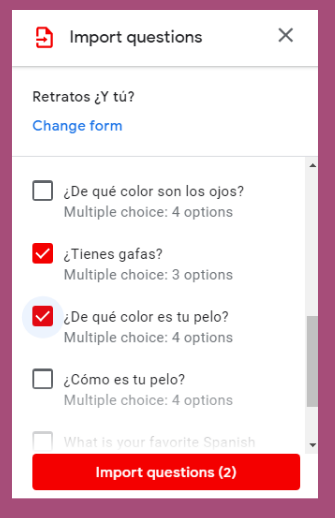
Then, when creating pre-tests, post-test, formative checks, spiral reviews, differentiated quizzes, etc  all you need is one button > Import Question to access your bank of pre-made questions.


Select the "Master Form" and quickly check off the questions you would like to reuse in your comprehension check, exit ticket or summative assessment.  Then POOF you are done, faster than you could have gone to the copier!

Let me know how I can help you make this and other tech work in your classroom or office!


Keep working smarter, not harder SMASD!