Saturday, October 8, 2022

New for 22-23 Tech Bytes 🍪🥧🍴

Keep an eye out in your faculty rooms this year!  Instead of filling your inbox, we will fill your belly! 

Take a treat, but don't forget your Tech Byte Flyer to take back to your desk! 

Missed out? While I cannot provide the extra snack on the blog, I can give you forever access to the tips! Come back here to find past information from the 22-23 Tech Bytes!

¡Buen Provecho! 🍴

Sunday, March 13, 2022

March Madness - EdTech & the 4Cs

After a long winter's nap, the TechSpot is back just in time for March Madness! 

SMAHS & SMAMS Teachers are invited to join in on the voting to see which application comes out on top. Click HERE to get started


Monday, December 6, 2021

Make more room to interact with Google Slides

We teachers still love ActivInspire for manipulating slides and making them interactive.  However, now that we are 1:1, more and more SMASD teachers taking advantage of Google Slides. 


  • Automatically save in Google Drive 
  • Access from anywhere
  • Send copies to students
  • Have students work together 


Despite its perks, the surrounding filmstrip and speaker notes made for less than ideal workable space around the slide. 

To combat this, some of us #GoDutch Teachers were using the FullScreen Interactive Google Slides Chrome Extension.  It did the job, yet was cumbersome and not immediately available for students.

Now Google has added the ability to hide the filmstrip, which has made more space for everyone! 

Under VIEW > Uncheck "Show FilmStrip" 

to give you and your students more room to work!


Need even more room?  
Under the same VIEW menu > uncheck > Show Speaker Notes & go Full Screen. 


For those who have never used Google Slides for Manipulatives, here are some ideas:

Market Template by Slides Mania for Counting Money

Counting Practice by Teaching Mama


Magnetic Poetry from Control Alt Achieve


Sending Birthday Wishes Class Discussion by Sra. T


Need more examples or a video explanation?  

Check out this video by fellow Google Trainer Eric Curts. 


Friday, October 15, 2021

Test Read-Alouds for ANY Student!

It's test day!  

            You have made your copies. 

            You have separated your desks. 

            You have fast-finisher activities ready to go.


But then.....

You forgot to schedule support staff to read your test to your population of students who need that scaffold! 


Never fear! Our 1:1 environment can help!

Technology can not only serve as a substitute but can also improve the read-aloud experience for students. Students can hear the directions and questions they need, as many times as they need them, all in your voice


Mrs. Deflippi recently had success using Classkick to assist with her Math 8 exam read alouds. With a Chromebook and a set of earbuds, any student was able to take advantage of the scaffold!


Not familiar with Classkick?  - Don't worry! There are many other options available.

Check out THIS VIDEO or the presentation below to see how you can have an audio recording ready to go for any of your upcoming tests or quizzes.


What options have you tried? Comment below to share out with your colleagues! 

Need help your first time around?  jtamburlin.youcanbook.me 

Middle School Teachers:  See get help with Tech Assisted Read Alouds during this year's Tech or Treat! See your "stall" news for details.


Wednesday, September 15, 2021

ABS Students? Classroom Android App to the Rescue

 I don't know about you, but when I am taking attendance in eSD I often see a splash or two (or 6) of red.


Not even the "Google Queen" has all of her items available for digital distribution.  

#paperhappens

Then, there is nothing worse than spending your entire prep making that one paper worksheet or note outline accessible for the one or two students who were unable to be in class.

1:1 Chromebooks have given us a quick life-saver solution to this problem through the use of the Google Classroom Android App.

On the taskbar of student Chromebooks, you will notice 2 similar icons for Google Classroom. 


SMASD Ts and Ss alike are most familiar with the Chrome web browser version of Classroom. Based on its ease of use, I still strongly recommend this version for daily teaching and learning. 

One benefit of the Android App is the ability to annotate a PDF assignment. This may be perfect for those now-and-again scenarios when you have one or two students absent. 

Annotation tools are also great for showing your work in math and as an accessibility option for students with special needs!

Check out the video (appropriate for teachers and students) to see how a student can use the pen, marker, and highlighter tools in the app to complete their notes or exercises when absent.


Want more information on what the Google Classroom Android App has to offer? Check out this blogpost by fellow Google Trainer Eric Curts. In this post, he covers in detail ways for teachers to use the Android App (on phones or Chromebooks) to: 

  • markup student work with a digital pen
  • quickly add videos and images from your phone to Classroom posts
  • adjust your notification settings


Getting annotated PDF attachments of Docs or Slides when you want the students to edit the file directly?  Students are accidentally using the app instead of the browser. Look at this throwback post to see what I mean. 


Finding other ways to make the most of the Google Classroom Andriod App? Share below!

Monday, September 6, 2021

Take a Tour of SMASD's ADP:

 ADP (@ADP) | Twitter

#TeacherConfessions:  I rarely log in to ADP.  

Before now, ADP to me was that place where teachers could enter in hours for covering a class on their prep or doing extra duties outside of the school day. No hours to enter = No logging into ADP

But there is so much more...

Last week I had the chance to sit with Carrie Saline and take a tour of ADP!  We had a mutually eye-opening experience, as she had never seen the user side.  Meanwhile, I had no idea what was available to me on my portal.

Take a tour with me in the following screencast to see where to access things like: 
  • Paystubs
  • Entering and Editing Timecards
  • Our Collective Bargaining Agreement
  • Federal, State & Local Updates
  • Investments
  • Beneficiaries
  • Salary & Step (Myself > Company Property)
  • Hire Date


Need a quick how-to for entering & editing hourly pay? Click HERE


I personally do not get email notifications for my paystubs, company policy acknowledgments, or new announcements. However, I hear that some employees do.  Carrie is working on ensuring that we all are notified of these posts and can have quick access via a link in an email notification. 

What have you found to be useful in ADP?  What else would you like to have access to through the portal? 

Comment Below!

Tuesday, April 20, 2021

Make the Most Out of Wordwall.

See the video below or click HERE for just the slides to see how you can leverage Wordwall. 


Do you have any favorite Wordwall activities that you have created or discovered? 

Add the link in the comments below to provide examples in different content areas for your #GoDutch colleagues! 

Tuesday, April 13, 2021

Flippity for Student Engagement

 Now that SMASD is beginning its 1:1 efforts, we need to rethink how we can leverage devices in the classroom. Before, we would not have thought to use technology for something short and sweet. Devices were difficult to come by, and you didn't want to hog them for a whole period for a 5-min activity.  Now, opportunities for quick bell ringers, formative checks for understanding and extension activities for fast finishers are available.

Let's take a look at how I leveraged Flippity Manipulatives this week as a bellringer for my 7th graders. 


Click HERE for the 📼 Video or HERE for just the slides. 


Link to my manipulatives from today ➡ Click HERE

Don't hesitate to reach out to brainstorm more ways you can make the most of the new 1:1 environment.

Tuesday, April 6, 2021

Rich-Text Editor Arrives to Classroom

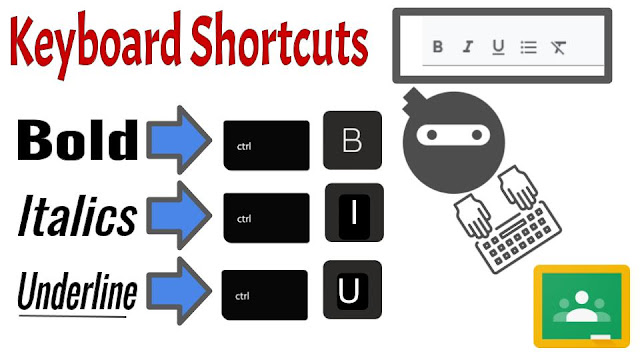
 Utilize text formatting in Google Classroom to improve communication! With the rich text editor at the bottom of your assignment and announcement text entry box you can... 

  • bold
  • italics
  • underline
  • create a bulleted list

... and, better yet (for you keyboard  🐱‍👤 ninjas out there) feel free to work the Ctrl B, I & U! 
(looking forward to a shortcut that starts a bulleted list 🤔)

Enjoy formatting your directions in Classroom!  


Don't forget to check out the "Featured Post" on Chromebooks as we begin our 1:1 rollout!

Tuesday, March 16, 2021

Padlet: Archive, Clear Posts, and Reuse

 Padlet is SMASD's go-to collaborative digital bulletin board.


Some of Padlet's inherently awesome features are: 

  • immediate change of audience from teacher only to whole class or to 💡 multiple classes 💡
  • ability to reply to posts, fostering dialogue
  • differentiation with the variety of post types
    • text, image, video, screencast, url, audio, draw (I see 👀 you math teachers!!) and more
  • collaboration
  • real-time interactions and feedback

Despite these features, some teachers have been put off by Padlet's limited number of free boards. (only 3)  Although what we often do not realize is that the board limit is only for active boards!  

In today's Tech Tuesday, I will show you how I  took an archived, not deleted, board from last year, cleared the posts, and reused it for this semester!


Pro Tips: 
  • Ask students to SIGN IN WITH GOOGLE before posting.  This allows them to edit their post if they make a mistake or accidentally post too soon.  It also automagically puts their name on it!
  • When reviewing student posts, use CTRL + F to search for a student name.  You will immediately know how many times he/she contributed to the board. 
  • Want posts to be private for a high-stakes assessment? - Turn on moderation in the settings.


Tuesday, March 2, 2021

Inspiration Station: Google Slides - Class/Group Slide Deck

 One of the reasons we love tools like Nearpod & Classkick is so that we can increase student participation and engagement in the classroom.  The ability to see all student responses real-time offers a unique opportunity for timely feedback.  In addition, having all students, or groups of students, on individual slides in the same deck has built-in potential for peer scaffolding and collaboration. 


Instead of a straight-up how-to tutorial, today I will share with you a scaffolded discussion strategy that I used with Spanish 8.  The goal is to share out and possibly to inspire you to do a spin-off of this activity with your students. 

This strategy models collaborative slides and leveraging the "Master Slide" layouts.


Watch 0:00-3:00 to learn how to set up and deliver a group Google Slide Deck. 

*Can be delivered through SeeSaw as well!


Watch 3:00-7:00 to see how I had students interact with the slides, and how I changed the prompts through the master slide layouts.


Watch this video to see how I "prepped" all of the prompts in the "Master Slides".  Or, learn straight from the SlidesMania guru, Paula, by going to her blog


Did technology enhance this activity?  Yes!  

Without the technology:
  • there would have been significantly less student participation
  • I would not have been able to see all responses in real-time
  • I may have lost teachable moments based on student responses
  • students would not have benefited from the guided pace, scaffolding, and ability to learn from their peers
  • there would have been a lost potential for future spiraling, collaboration, elaboration on the discussion

Interested in trying something like this?  Let's do it together your first time through! 


Have something to share?  

Let me highlight the awesome strategies that you are using in your classroom to inspire others!


Thursday, January 28, 2021

Snow Day & Semester Change Tips and Ideas

 Check out the video and/or slides below to find out more about: 

  • Quickly changing due dates in eSD after a snow day
  • Copying Assignments from class to class in eSD
  • Copying Classes in Google Classroom
  • Creating a new Google Classroom for the new quarter

Do you have experience with these tips? -- Share your successes and fail-forwards in the comments! 

Click HERE for the slides or HERE
for the video. 

Tuesday, January 5, 2021

eSD Google Classroom Import & Sync


If you are a heavy Google Classroom user & like to update grades as assignments come in, check out the new eSD Google Classroom Import and Sync options! 

      • 📓Import assignment titles, point values, descriptions and due dates from Classroom to eSD 
      • 📓Option to have grades auto-synced at 7pm daily 
      • 📓Option for manual real-time syncing of scores


Learn how to Import Assignments & Sync Scores by: 

  • Watching the following video 📼
  • Clicking HERE for the slide deck instructions 📋
  • Attend the "live" demo at 1pm today 💻


Have you already tried the eSD Google Classroom Sync?   What tips and tricks can you share? Comment below!

Sunday, December 6, 2020

The Twelve Days of Teacher Tech 2020

 Follow along with this year's Twelve Days of Teacher Tech.  

A new bulb (tech tip) will appear on the tree every day until it is all lit up! 

Start by clicking on bulb #1.  Try out the tip.  Then email Jen T screenshot evidence!

Particpants will receive Techmas Goodies and be entered in for a prize!!! 


Tuesday, November 10, 2020

Screenshare with the ActivPanel

Hey There ActivPanel Teachers! 


Want to go wireless with your device?  

Want to have students project from their Chromebooks to share with the class their findings, and discoveries? 

With a recent update the panels have a new screenshare app that works with the Promethean Screen Share Chrome Extension. 


Anyone with a Chromebook can mirror their screen wirelessly to the ActivPanel.


Watch my video below to see how to:
  • find the Screen Share app on my panel
  • get the Chrome Extension
  • request to mirror my screen
  • accept the request on the panel


Want help with initial setup?   Need alternative options?

Be sure to post below how you already are using screen mirroring in your classroom!

Monday, November 9, 2020

SeeSaw Pin to Top


Pinning is super-popular in our tech world.  Pinterest, pinning tabs on our browser, and pinning posts on our Twitter feeds help to keep what is important in reach. 

Seesaw in September rolled out their version of a pinning feature which will keep a post at the top of the Journal or the Activiies tab. 


Some popular ideas for elementary pinning are: 

  • Bitmoji Classrooms
  • Frequently-Used Sites
  • Lesson Plans 
  • Today's Schedule / Specials 
  • General Announcements 
  • Lunch Menu 
  • Google Forms
    • Lunch Count
    • Social/Emotional Check 
  • Homework


What activities or posts do you "Pin to the Top"? 

Have any pro-tips? Post them in the comments!


Give me your best One-Liner: for Google Classroom Rubrics

Today we aren't talking about these one-liners... 


 I changed my password to "incorrect". So whenever I forget what it is the computer will say "Your password is incorrect".

My email password has been hacked. That's the third time I've had to rename the cat.

My mom said that if I don't get off my computer and do my homework she'll slam my head on the keyboard, but I think she's jokinfjreoiwjrtwe4to8rkljreun8f4ny84c8y4t58lym4wawt4mylt4amlathn...

CAPS LOCK – Preventing Login Since 1980.

Source onelinefun.com 

Instead, we are going to put a twist on a post from earlier this year, "I love Google Classroom Rubrics" .


As teachers we are fans of using rubrics for efficient grading and feedback. However, we can sometimes cringe at the thought of developing them.  

What if I told you that not every rubric had to be 5 columns by 5 rows? 

Google Classroom Rubrics can be one-liners! Quickly assess the "little" things while staying consistent with point values.   By adapting this one-liner rubric, you will save time "counting errors" and quickly communicate to the student if he/she is on the right track.  You will also have more time for the real-specific, personalized feedback that they need.


Check out this rubric I made for some quick "I can" checks in Google Classroom! 

It is 5 option multiple choice that quickly lets me assign the grade of  "0" "60" "B" "A" or "100%"


Make a copy of the one-liner rubric HERE.  Make your changes in Google Sheets, then add the rubric to a new or existsing Google Classroom Assignment. + Rubric > Import from Sheets


Have you heard about the single-column rubric
This is a great place to start for assignments that are multi-step or have several elements that need evaluated separately. Click HERE for a template that you can edit to get started. 


Or, for all of you go-getters, click HERE for a customizeable 5x5 rubric in Google Sheets.  Remember that your rows and columns do not have to have the same quantity of descriptors, nor do they have to have the same point values. (E.g. Content can be worth way more than design or spelling.) Simply delete cells that you aren't using.


This is now my 5th post to the TechSpot about rubrics.  If you don't see what you are looking for in this post, check out the archives.  Included in these posts is a link to roobrix, a tool to help you give numerical grade values to your rubrics.


Join the Google Classroom Rubric trend with others from our #GoDutch family!


Need help with your first one? - Send me your criteria and I will get you up and running to see if you like it! 

Keep it techie!

Jen


Tuesday, October 13, 2020

Copy a Direct Link to an Assignment


The three dots are magical!  

Anytime you see 3 dots you know that awesome options are just a click away!


The 3 dots on Google Classroom posts lead you to a menu with the option to 

Copy link.

When could this assignment url be useful for teachers and students? 


1. Remind - For teachers who push out communication reminders you can add the direct link to the assignment in your post! 
Help Center


2. Email - Keep the message clear. Include the url of the missing work right in the message to take them directly to the assignment! 
File:Gmail Icon.svg - Wikimedia Commons


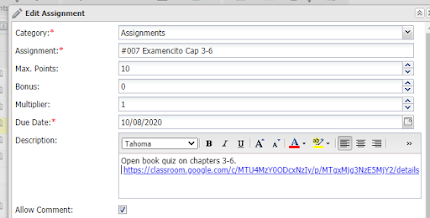
3. eSD - Use the description textbox to insert the link to the assignment.

eSchoolData Help Center / eSchoolData Help Center


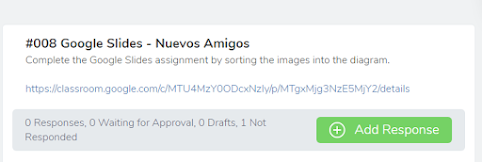
4. SeeSaw - Have an awesome Googley assignment that you need collaboration or a copy for each student?   Make it in Google Classroom, but post it in SeeSaw! (tip: post the link in the instructions - not under multimedia)
LPS Computing Services | Seesaw


4. Hyperdocs - Yes! This one is brilliant.  Hyperdocs offer a variety of learning activities for students, but as a teacher it can be hard to keep track of where all these great assignments are, designate sharing permissions and make each student a copy of files.   Hyperlink each activity and ta-da kids have the pedagogical benefits of the Hyperdoc and the organization Google Classroom simultaneously.
HyperDocs Academy | HyperDocs