Tuesday, March 14, 2017

Videos, Videos, Videos...


What is the #1 way that people learn on the Internet ?  

Image result for youtube
Through VIDEO!  

Technology has given us access to be effortless consumers and creators of video.  No more rewinding the VCR tape between classes nor hoisting up the big camcorder on your shoulder.  Now we just use the device in our pockets, click a button or two and we are either watching or producing a video.

Today's students are interpreting video just as much as text to acquire information.  It is "where they are".  So why not make some attempts to meet them there now and again to engage with the content.


Teacher Tools for Consumers of Video:

When you want your students to watch videos as part of their learning experience, either as part of a flipped class, remediation or otherwise here are some tips for posting that video.

  • Use YouTube Playlists
    • Stop searching for videos, create lists for different courses and/or topics
    • Sign in using your smdutch.net account
    • Share the links to the playlists on Google Classroom or your Webpage
  • Use Google Forms 
    • Embed your video into a Google Form to keep students focused on the video
    • You can also ask comprehension questions to ensure that they watched it
    • If you set it up as a quiz, you and the student can get immediate feedback 
  • Use EdPuzzle Image result for edpuzzle
    • Embed questions into the video that the students must answer before moving on
    • Students can repeat sections as needed
    • Links with your smdutch.net account and Google Classroom
    • Get instant feedback, progress and data

Teacher Tools for Creators of Video:

Sometimes we think oral communication is lost when it comes to technology. Well, that is not true with video.  I can now hear every student in my classroom speak Spanish as often as I want without the limitations of a 42 min class period.  

Think of the possibilities in your classroom!  Students can now explain how they got the answer instead of simply marking a, b or c.


Okay before we get to the tools - Let's STOP for a moment and ponder here...  

Which way do you watch television?

Like this....        OR           Like this?!?!?!

Image result for selfie video
                                                
So, please remind your students to hold their phones horizontally while filming.


Other hints when you ask your students to record video: 

  • Avoid editing (unless that is the learning goal)
    • Instead, reinforce planning & preparation with storyboards & scripts
    • Editing can turn your 2 day project into a 10 day project very quickly
    • Most times it is quicker to have the students do a one-take video 2 or 3 times than to edit parts together
  • Keep it steady
    • Use a tripod or create one with your elbows on a solid surface

Now for the tools:


1.  Let's Recap Throwback Post:  Click here or go to our featured post to see this tool again
Kudos to SMAHS teacher Jamie Caskey and junior Sophie Geitner for using Let's Recap schoolwide for the Pi Day Challenge.  Check it out here & be sure to explore the Scavenger Hunt tabs to see examples.

2. FlipGrid : I just found this tool yesterday!  I would categorize this as the High School version of Let's Recap (although - Let's Recap is K-12)   

TRY OUT MY FLIPGRID HERE! 


Some Pros & Cons: 
  1. Both work with your smdutch.net accounts
  2. Both can easily link to Google Classroom
  3. Let's Recap provides you with presentation-ready highlights of student answers.
  4. Flipgrid allows the students to see their classmate's responses.
  5. Let's Recap allows multiple "classes" for free.
  6. Let's Recap allows you to limit the time 15 seconds - 2 minutes
  7. Flipgrid has a standard 1:30 sec response time.

3. Google Classroom:  Lastly don't forget that you can have students submit any type of media through Google Classroom and it is all there and organized for you to view.  

Image result for google classroom

Interested in learning more about how to use any of these tools in your classroom? - Contact your TechCoach today!


Tuesday, March 7, 2017

Student-Centered Learning with EdPuzzle & ActivelyLearn


Scenario 1:
Tonight's assignment: 

  • Read chapter 2 of The Red Badge of Courage


Tomorrow's reality: 
  • Class tries to have a discussion, but half of the population has not read the assignment and of those who have there are varying levels of comprehension.
  • Teacher is stuck choosing a group to which to teach: 
    • Do I reread the selection with them, risking the advanced students to be bored and unchallenged? 
    • Do I teach to those who have understood the selection and leave the others attempting to catch up?
Scenario 2:
Tonight's assignment: 
  • Watch the video on Solving 2-Step Equations

Tomorrow's reality: 
  • Some students watched the video and took notes and are ready for class time application.  Others were posting to Snapchat while the video was playing in the background.
  • Teacher is faced with the decision of 
    • Showing the video again
    • Lecturing on the content that was in the video
    • Giving all students the same practice problems even though they are all at different stages in learning

This was how teaching used to be. Now with apps like EdPuzzle and ActivelyLearn teachers can easily make more effective use of class time while differentiating instruction.

Scenario 1 with ActivelyLearn: 
Tonight's assignment: 
  • Read chapter 2 of The Red Badge of Courage in ActivelyLearn.  You will have embedded comprehension and reflection questions as you read allowing you to interact with the text. 
Tomorrow's reality: 
  • Based on the responses in ActivelyLearn the teacher groups the students for differentiated instruction
    • Those who haven't done the assignment will now do it during class
    • Those who need guidance will have teacher led or mentor led discussions
    • Those who are above expectations can work on an extension activity or mentor others

Scenario 2 with EdPuzzle: 
Tonight's assignment: 
  • Watch the video on Sovling 2-Step Equations on EdPuzzle. You will be stopped periodically to check for understanding.  Feel free to rewind sections of the video that are unclear to provide the most accurate response.  The last question will give you an opportunity to do a self-evaluation.
Tomorrow's reality: 
  • Based on the results of the EdPuzzle assignment, the teacher creates a stations activity where learners are challenged to figure out why each problem was solved incorrectly.  Groupings are made so that there is a mentor learner in each.
  • Students who didn't complete the assignment will be on a device finishing it. 
  • Teacher is now freed to pull those who need it for remediation.

Schedule an appt with your TechCoach or a fellow teacher to learn more!


Thursday, February 16, 2017

Gaming in the Classroom

We know that in the 21st century, it can be hard to obtain and hold students' interest in the classroom. According to Jessica Trybus of the New Media Institute, "When education or training feels dull, we are not being engaged and motivated. In other words, we're not really learning. "Learning" doesn't mean rote memorization--it means acquiring the skills and thought processes needed to respond appropriately under pressure, in a variety of situations." 

One way to engage students and keep them motivated is to incorporate gaming in the classroom. This week at PETE & C, there were many sessions about gamifying learning experiences, so this post will focus on a few different ways you can get started. Below is a slide from one of those presentations, making the argument for incorporating game-based learning in the classroom.


Gaming in the classroom can take many forms. We've posted (and also presented at in-service) before about some formative assessment tools you can use that are in the game-based format. Some of those include Kahoot, Quizlet, and Quizizz. In addition to incorporating gaming, these are all great use of devices in the classroom and can fit any grade level and content area.

There are also several video-game type options that have been tailored specifically for schools. Many students spend hours playing video games at home, so why not tap into their enthusiasm for this hobby by incorporating it into the classroom?! Both Classcraft and Minecraft EDU have a gaming platform that can be used in a variety of ways. Teachers can use Classcraft as a classroom management tool and can incorporate assignments within it. Students can earn points and level up for behaviors the teacher sets like helping other students, correctly answering questions, and being a hard-worker/having a positive attitude. MInecraft EDU is based on the extremely popular game that you've probably heard students talking about at one point or another. Teachers can create lessons for students (or use already created lessons) that  have students utilize the Minecraft EDU platform. These lessons and activities cover subjects across the curriculum and can be used  with virtually any age-level. These gaming options are the perfect way to cover content, enhance collaboration, critical thinking, and problem solving skills, all while keeping students engaged and motivated. You don't have to have a background in video games to utilize these resources in the classroom and there are lots of tutorials and premade materials to help you get started!


My new favorite game-based find for this school year is Breakout EDU. Breakout EDU is similar to the idea of an Escape Room, but students are using boxes with locks instead of being locked in a room. They are given a back story and must use clues to solve a series of puzzles and unlock locks to "breakout." Again, the common theme among all of these different gaming ideas is that they promote teamwork, problem solving, critical thinking AND one I haven't mentioned yet-learning that failure is okay and a necessary part of learning. Teachers have already created a huge database of Breakout games that cover just about every concept under the sun and you can find games to fit every age-level. If you don't find something that fits your needs, you can create your own game, or even better, have students create the games! Check out the video clip below for more information and also the Techshowcase tab above for pictures of Breakout EDU games in action.


There were a lot of different ideas packed into this post and I know that can be overwhelming at first. However, I encourage you to think about how you could start small and incorporate a little bit of game-based learning in your classroom. Focus on one idea and go from there. If you need the support of a tech coach, please don't hesitate to ask!


Tuesday, February 7, 2017

Throwback Tuesday-BYOD!

We’re starting off February TechTuesdays with a throwback post…then next week’s post will be something fresh and new, hot off the press from PETE&C (Pennsylvania Educational Technology Expo & Conference) in Hershey, PA!
It's been a little over a year since our school board updated the SMASD BYOD policy. Have you utilized BYOD in your own classrom yet? It might be a great way to supplement the devices our district has provided. Check out the "Featured Post" section in the top right corner of the blog for our previous post on BYOD. If you have found success or have run into any roadblocks, please feel free to share them in the comments section below!

Tuesday, December 20, 2016

Rethink Google Slides


Google Slides aren't just for presentations anymore!

Go through the presentation above to find out more or click here to open the presentation in a new tab.

Have an idea for using Google Slides in your class?  
Contact a Tech Coach to help you get the ball rolling!

Monday, December 12, 2016

ActivInspire connects with Classflow


Remember these guys? 
Image result for activexpressionImage result for activoteWow! They were really the cat's pajamas! 
Image result for cat's pajamas


But now, their batteries are dying, kids don't remember how to text with a number pad, etc... 

So how do we gather feedback from our students with all these fantastic flipcharts we already have? 


This button right here should be at the top of your ActivInspire Flipchart.  
(If not, let a techcoach know you need updated!)

Go ahead!  Click Connect!
Now just click the "G" to sign in with your @smdutch.net account!


Here comes the money!  Your class code.  Best part - it NEVER changes!  So, make that poster for your classroom that says: 

classflow.com/student 
> Join
> Q9772 (use your unique class code)

*Students do not need an account & you don't have to pre-prepare anything!

Image result for activinspire expresspollAll the student needs is a device with the Internet and you are in.  

Use your Express Poll button to send out these types of questions on the fly.  No prep needed.

- Multiple Choice
- Text Response
- Numeric Response
- Sort in Order 
- True / False 

Image result for activinspire expresspollStudents will receive a copy of your slide with a place to submit an answer.  All the data comes to your flipchart with an immediate pop up graph of responses.  

AND - as if there couldn't be more - the responses are stored in a separate page at the end of your flipchart for you to reference later for individual data collection.  

Unique ideas I used last week: 

- Send the slide to your students to take notes without squinting to see the board.  Send them a Yes/No question to find out when they are finished copying.

- Instead of sending students to the board to go over answers, have a representative from each group send their answer to the board as the response to a text or numeric question.

'Tis the season to RECEIVE!  Contact a techcoach for a demo before break!


Tuesday, December 6, 2016

Give Googley Feedback

You've done it!

  • You've made your Google Classroom.
  • You're students are in it.
  • You have created an assignment.
  • Submissions are rolling in....
Now what?                                                                      


Sure you can print them, but why?  Then you just need to lug your papers back and forth like you always had.  Put that Surface to work for you and join me as I show you ways to assess a Google Doc (or Google Slides) submitted by a student.

Commenting:
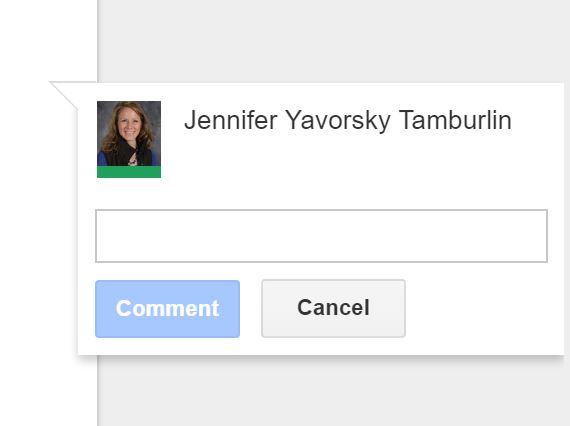
What does it do? ~ It leaves a comment for the reader in the margin of the doc.
     
How do I do it?  ~ Put your cursor on the word you want to comment on or highlight the text.  
            Hit Ctrl+Alt+M. Type your comment in the box and then click Comment.


     Tip #1: If your students are revising their work, tell them NOT to click "Resolve".  This way you can decide if the correction was adequate and get through your final copies faster.
     Tip #2: Use the comment box to provide resources that will help them fix their error.  Copy a web address to direct them to notes or a tutorial.
Tip #3: Copy and paste your rubric at the end of the student's doc.  Then comment, giving feedback  on the box/score/level he achieved. 


Suggesting: 
What does it do? ~ It adds a suggestion directly into the text of the document.  Letting the author know what you think it should be.

How do I do it? ~ Click the "Editing" button in the upper right hand corner of your doc.  Change it to       "Suggesting" mode.  Highlight the text that you want to replace and begin typing.  The       highlighted text will have a strikethrough appearance and your text will be there between brackets.

Tip #1: Please note that the student will simply have to accept or reject the suggestion for it to take effect.  The original author does not have to type in the change himself.  Therefore this may be a better tool for students to use with each other on a group assignment, leaving commenting the tool for a teacher to guide a student to improving his work.


Returning Grades in Google Classroom: 
What does it do? ~ It gives you a place to store your grades for the assignment until you are ready to put them in PowerSchool.  Seemingly taking place of a paper gradebook.  You can view the grades for each of your Google Classroom Assignments individually, or you can view all the grades for that class in a spreadsheet.

How do I do it? ~ Click on the assignment in Google Classroom.   Change the total points at the top.  Add your grades in as you evaluate each student's work.  (Don't forget to return the grade to the student with any comments you have).  Click the gear in the upper right to see a spreadsheet of all of your Google Classroom grades for this class.  Copy them to PowerSchool periodically.

Tip #1: At this time you can't put in 1/2 points.  It will round the number up.  
Tip #2: If students have the Google Classroom App, they will get your grades and comments as a notification on  their ipod, tablet or phone.  This greatly improves feedback speed as well as submission of redos.
Tip #3: You can give individual comments as well as group or whole class comments when returning a grade/assignment.

       What tricks do you have for giving digital feedback to your students?  Comment below!