Last week as I was running around being techie, I came across students in Mrs. Hart's class on their Chromebooks.
Below was what I saw on a screen:
Not only was this fantastic doc template pushed out through Google Classroom's
"Make a Copy for Each Student" so she could watch their progress as it happened but....
The students were using Google Keep notes to guide their writing, right there within Docs!
To my understanding, students
went to keep.google.com to create their notes, while doing research much like index cards
categorized the notes by "label" and/or "color" to be their Health Project notes
opened the notes while writing within docs
Also - you will see the checkboxes in the top note! I am envisioning this note to be pushed out by the teacher as the "must-includes" for the assignment.
More...
- Don't forget notes can be collaborative! Students can share notes for group projects. Ts & Ss can have feedback dialogue within a shared note.
-Split screen will work on all our devices for the research portion.
Want to save hours a week? Check out Toby for Chrome!
This summer while attending some online meetings for my graduate classes, I noticed that my instructor had a super-organized home screen. He had links to websites, presentations, worksheets, etc categorized by the courses he taught, including his HS Biology courses.
Toby is a Chrome Extension, that creates a homepage for you where you can save and organize frequently used tabs. Save them by course, unit, or lesson! Also, this screen will follow you from classroom, to classrom, Surface to home computer, etc. Never be anywhere without your links! Sound interesting click HERE to try it out!
Need more convincing? Join me on this tour of how I use Toby from day to day, as well as see how to build, edit and move a collection. I promise the investment is worth the returns with this one!
EdCamps are participant-driven, informal learning opportunities for teachers. In a traditional EdCamp all participants show up in the morning and brainstorm ideas of topics that they would like to know more about. After a list of topics is created, particpants who are well-versed in the proposed areas will volunteer to facilitate each discussion. From there a schedule is made and particpants attend the sessions of their choice. EdCamps are free, and we have some great ones in our area:
EdCamp DuBois - in July @ DuBois Area Middle School
GCC EdCamp - in April @ Grove City College
EdCamp Happy Valley - in March @State College Area HS
Our October in-service is a spin-off of this model. We are just crowdsourcing ideas and presenters in advance to create a schedule that will logistically meet our needs.
Dr. Wortman has put the word out for presenters. Click HERE to volunteer your expertise.
Below is a Padlet I have created for everyone to brainstorm ideas of what they would like to learn.
Before you make your "choice", let your "voice" be heard so your needs/curiosities
can be addressed in the session offerings.
Hit the "+" to add an idea.
Give it a "thumbs up" if there is a topic you would like to see on the list of sessions.
Your voice may just inspire someone to lead up a session.
Thank you for your participation in making the October In-Service a meaningful learning opportunity!
for any student needing a copy of notes, Google Classroom, or for your records
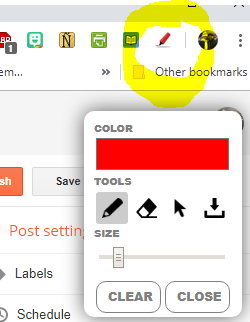
Annotations will scroll with youon most webpages.
Cons:
scrolling not available for Google Docs
work around File > Publish to the Web > Open url
Page Marker certainly isn't a tool I use everday, but it is nice to have in your back pocket for a quick note while teaching, demo-ing, creating tutorials etc.
What tricks have you found when teaching to quickly markup your screen?
For many of us Google Classroom is our go-to base for assignments and resources for our students.
Without their students' login information, parents cannot see what assignments are coming up nor resources you have posted.
Under the "People" section in Classroom you have the option to "invite" guardians. Some of your students may already have guardians listed. To invite them all you need to do is add in their email address. Open House / Parent Teacher conferences are a good time to get those addresses. Otherwise they are in eSD.
At times by default they are turned off.... be sure to turn them on for your courses!
Note: A student only has to be added to 1 class. Therefore if all homerooms, or advisory periods created a classroom, and added the guardian email addresses, all students would be covered, and it would carry over from year to year.
Once the email address is added the guardian will be offered the option to receive periodic summary emails for their student's Google Classrooms. Parents will not have full access to your classroom, they simply will get an update on Missing Assignments, Upcoming Assignments & Announcements.
Check out this video to see how a parent signs up.
Happy Tuesday Everyone! Welcome back. eSD has certainly been the focus for us all these first few weeks on the technology front. Therefore we will be periodically offering tips for its use as well as other instructional tech tools.
Last week I sent this tip to a handful of SMASD Teachers via email to see if it was worthwhile. Shortly after, an inbox full of "thank yous" made me realize that this is something we should share on the Techspot.
Get eSD Teacher Connect in a TAB.
When we open eSD it opens first in a tab in our browser, but then when we click the Teacher Connect button in the upper right, we are forced to work out of a new window, which can be cumbersome.
Check out this video to see:
How to get your gradebook/attendance in a tab in your browser
How to go straight to Teacher Connect (gradebook) bypassing the main eSD My Page.
Print a Roster Grid
I believe this was touched upon in our training, but how quickly I can forget. Thanks to Paula for figuring this one out!
Check out this video to see:
Print a blank roster with a grid to hand mark grades, attendance, participation etc.
Slowly but surely we will get all this down!
Did you figure out a trick ? Need help with something ? Leave a comment below!