Thursday, October 17, 2019

Chromebook Tips & The Geek Squad

More and more Chromebooks are finding their way into our classrooms.  In today's TechSpot I want to highlight some of the keyboard and touchpad functionalities of the device.   As teachers working on mainly Windows machines, it makes it challenging to offer tips to students as they are working, especially at the elementary level. 

Below I have remixed a resource from another Google Trainer that illustrates some of the key functions, shortcuts and, my personal favorite, touchpad capabilities! 

Consider sharing this resource with your students by: 

  • displaying it through your projector during free time
    • to allow for self-discovery/exploration learning
  • print the poster and display for students to reference while working
    • print on 11 x17 paper if possible
      • if not Print > More Settings > Scale > Fit to Page
  • post on Google Classroom as a "Material" 
As always you will be fascinated with how quickly the kids can pick up on these tips!
I especially love the touchpad tips, consider starting with those!  


Click HERE to open the infographic in Google Drawings.
Feel free to File > Make a Copy of this document to save for yourself. 

Have other questions about the way your devices operate?   

  • SMAMS has started a Tech Assistants - Geek Squad who are putting together resources to help teachers and students work with our devices. Check out what we have so far, and offer ideas for new posts in the comments below!   Once we get a good bank of resources we will start sharing them in a common space.  
Click HERE to open the site.  
Note this is a working brainstorm sheet, students are still figuring out permissions, etc. 


    Thursday, October 10, 2019

    October 2019 In-Service Presentations

    Maybe, just maybe, by now we have recovered from Monday and Tuesday's In-Service. 

    Truly a case of "So many great ideas & so little time." 

    Most of our presenters have been gracious enough to add links to their resources to this spreadsheet. 

    Use it to refer back when implementing a new idea you learned, or to take a tour of the sessions that you were unable to attend.

    As always feel free to contact me or any of the presenters as you bring in your newfound ideas to your classroom!  We are all here for you!

    Open Spreadsheet by Clicking HERE


    Tuesday, October 1, 2019

    App Smashing with Docs & Keep to Help with Writing

    Last week as I was running around being techie, I came across students in Mrs. Hart's class on their Chromebooks.

    Below was what I saw on a screen:


    Not only was this fantastic doc template pushed out through Google Classroom's 
    "Make a Copy for Each Student"  so she could watch their progress as it happened but.... 

    The students were using Google Keep notes to guide their writing, right there within Docs!


    To my understanding, students 
    • went to keep.google.com to create their notes, while doing research much like index cards
    • categorized the notes by "label" and/or "color" to be their Health Project notes
    • opened the notes while writing within docs

    Also - you will see the checkboxes in the top note!  I am envisioning this note to be pushed out by the teacher as the "must-includes" for the assignment. 


    More...
    - Don't forget notes can be collaborative! Students can share notes for group projects.  Ts & Ss can have feedback dialogue within a shared note.
    -Split screen will work on all our devices for the research portion.


    Tuesday, September 24, 2019

    Toby Tab Collections

    Want to save hours a week?   Check out Toby for Chrome!


    This summer while attending some online meetings for my graduate classes, I noticed that my instructor had a super-organized home screen.  He had links to websites, presentations, worksheets, etc categorized by the courses he taught, including his HS Biology courses. 


    Toby is a Chrome Extension, that creates a homepage for you where you can save and organize frequently used tabs. Save them by course, unit, or lesson!  Also, this screen will follow you from classroom, to classrom, Surface to home computer, etc.  Never be anywhere without your links! Sound interesting click HERE to try it out!

    Need more convincing?  Join me on this tour of how I use Toby from day to day, as well as see how to build, edit and move a collection.  I promise the investment is worth the returns with this one!


    Tuesday, September 17, 2019

    Let your voice be heard! - October's In-Service


    Image result for edcamp
    Have you ever heard of an EdCamp? 


    EdCamps are participant-driven, informal learning opportunities for teachers.  

    In a traditional EdCamp all participants show up in the morning and brainstorm ideas of topics that they would like to know more about.  After a list of topics is created, particpants who are well-versed in the proposed areas will volunteer to facilitate each discussion.

    From there a schedule is made and particpants attend the sessions of their choice. 

    EdCamps are free, and we have some great ones in our area: 

    • EdCamp DuBois - in July @ DuBois Area Middle School
    • GCC EdCamp - in April @ Grove City College
    • EdCamp Happy Valley - in March @State College Area HS

    Our October in-service is a spin-off of this model.  We are just crowdsourcing ideas and presenters in advance to create a schedule that will logistically meet our needs.

    Dr. Wortman has put the word out for presenters.  Click HERE to volunteer your expertise.

    Below is a Padlet I have created for everyone to brainstorm ideas of what they would like to learn.  

    Before you make your "choice", let your "voice" be heard so your needs/curiosities 
    can be addressed in the session offerings.

    Hit the "+" to add an idea.   
    Give it a "thumbs up" if there is a topic you would like to see on the list of sessions. 
    Your voice may just inspire someone to lead up a session.

    Thank you for your participation in making the October In-Service a meaningful learning opportunity!

    Click HERE to open the Padlet in a new Tab.
    (all votes and ideas are anonymous)


    Made with Padlet

    Tuesday, September 10, 2019

    Write on that site!

    Most of us here at SMASD are working with ActivBoards and pens to project and teach.

    When it comes to writing out notes & examples for our students with the pen, 
    we head to ActivInspire for our digital whiteboard. 


    But, what happens if we want to annotate a resource that is on the web, 
    in a tab in our Chrome browser? 

    #1 You have the option to "Desktop Annotate" within ActivInspire
    • Pros: 
      • Availablity of  the entire ActivInspire toolbar
      • Easy to switch back to ActivInspire when finished annotating
    • Cons: 
      • ActivInspire must be open
      • The pen marks do not "scroll" with your webpage


    --------------------------------------------------------------------------------------------------------------------------

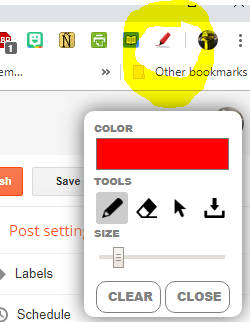
    #2 Install "Page Marker" Chrome extension
    • Pros: 
      • Get a pen, without leaving the browser
      • Easily save/download your annotations as an image 
        • for any student needing a copy of notes, Google Classroom, or for your records
      • Annotations will scroll with you on most webpages.
    • Cons: 
      • scrolling not available for Google Docs
        • work around File > Publish to the Web > Open url


    Page Marker certainly isn't a tool I use everday, but it is nice to have in your back pocket for a quick note while teaching, demo-ing, creating tutorials etc.


    What tricks have you found when teaching to quickly markup your screen? 
    Let us know in the comments below! 


    Tuesday, September 3, 2019

    Guardian Email Summaries in Google Classroom

    For many of us Google Classroom is our go-to base for assignments and resources for our students.

    Without their students' login information, parents cannot see what assignments are coming up nor resources you have posted.

    Under the "People" section in Classroom you have the option to "invite" guardians.  Some of your students may already have guardians listed.   To invite them all you need to do is add in their email address.  Open House / Parent Teacher conferences are a good time to get those addresses.  Otherwise they are in eSD.


    Check to See if Summaries are Enabled!
    At times by default they are turned off....  be sure to turn them on for your courses!


    Note: A student only has to be added to 1 class.  Therefore if all homerooms, or advisory periods created a classroom, and added the guardian email addresses, all students would be covered, and it would carry over from year to year.


    Once the email address is added the guardian will be offered the option to receive periodic summary emails for their student's Google Classrooms.  Parents will not have full access to your classroom, they simply will get an update on Missing Assignments, Upcoming Assignments & Announcements.  

    Check out this video to see how a parent signs up.


    Examples of Summaries: