Tuesday, April 13, 2021

Flippity for Student Engagement

 Now that SMASD is beginning its 1:1 efforts, we need to rethink how we can leverage devices in the classroom. Before, we would not have thought to use technology for something short and sweet. Devices were difficult to come by, and you didn't want to hog them for a whole period for a 5-min activity.  Now, opportunities for quick bell ringers, formative checks for understanding and extension activities for fast finishers are available.

Let's take a look at how I leveraged Flippity Manipulatives this week as a bellringer for my 7th graders. 


Click HERE for the ๐Ÿ“ผ Video or HERE for just the slides. 


Link to my manipulatives from today ➡ Click HERE

Don't hesitate to reach out to brainstorm more ways you can make the most of the new 1:1 environment.

Tuesday, April 6, 2021

Rich-Text Editor Arrives to Classroom

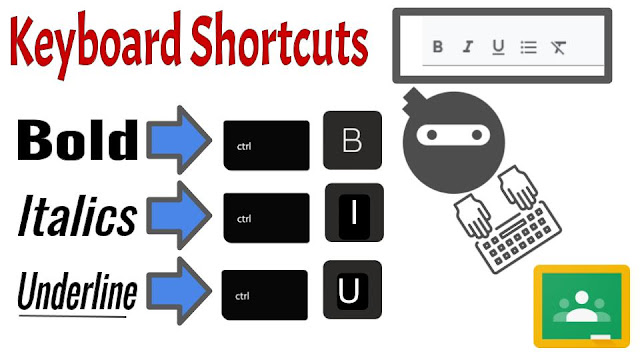
 Utilize text formatting in Google Classroom to improve communication! With the rich text editor at the bottom of your assignment and announcement text entry box you can... 

  • bold
  • italics
  • underline
  • create a bulleted list

... and, better yet (for you keyboard  ๐Ÿฑ‍๐Ÿ‘ค ninjas out there) feel free to work the Ctrl B, I & U! 
(looking forward to a shortcut that starts a bulleted list ๐Ÿค”)

Enjoy formatting your directions in Classroom!  


Don't forget to check out the "Featured Post" on Chromebooks as we begin our 1:1 rollout!

Tuesday, March 16, 2021

Padlet: Archive, Clear Posts, and Reuse

 Padlet is SMASD's go-to collaborative digital bulletin board.


Some of Padlet's inherently awesome features are: 

  • immediate change of audience from teacher only to whole class or to ๐Ÿ’ก multiple classes ๐Ÿ’ก
  • ability to reply to posts, fostering dialogue
  • differentiation with the variety of post types
    • text, image, video, screencast, url, audio, draw (I see ๐Ÿ‘€ you math teachers!!) and more
  • collaboration
  • real-time interactions and feedback

Despite these features, some teachers have been put off by Padlet's limited number of free boards. (only 3)  Although what we often do not realize is that the board limit is only for active boards!  

In today's Tech Tuesday, I will show you how I  took an archived, not deleted, board from last year, cleared the posts, and reused it for this semester!


Pro Tips: 
  • Ask students to SIGN IN WITH GOOGLE before posting.  This allows them to edit their post if they make a mistake or accidentally post too soon.  It also automagically puts their name on it!
  • When reviewing student posts, use CTRL + F to search for a student name.  You will immediately know how many times he/she contributed to the board. 
  • Want posts to be private for a high-stakes assessment? - Turn on moderation in the settings.


Tuesday, March 2, 2021

Inspiration Station: Google Slides - Class/Group Slide Deck

 One of the reasons we love tools like Nearpod & Classkick is so that we can increase student participation and engagement in the classroom.  The ability to see all student responses real-time offers a unique opportunity for timely feedback.  In addition, having all students, or groups of students, on individual slides in the same deck has built-in potential for peer scaffolding and collaboration. 


Instead of a straight-up how-to tutorial, today I will share with you a scaffolded discussion strategy that I used with Spanish 8.  The goal is to share out and possibly to inspire you to do a spin-off of this activity with your students. 

This strategy models collaborative slides and leveraging the "Master Slide" layouts.


Watch 0:00-3:00 to learn how to set up and deliver a group Google Slide Deck. 

*Can be delivered through SeeSaw as well!


Watch 3:00-7:00 to see how I had students interact with the slides, and how I changed the prompts through the master slide layouts.


Watch this video to see how I "prepped" all of the prompts in the "Master Slides".  Or, learn straight from the SlidesMania guru, Paula, by going to her blog


Did technology enhance this activity?  Yes!  

Without the technology:
  • there would have been significantly less student participation
  • I would not have been able to see all responses in real-time
  • I may have lost teachable moments based on student responses
  • students would not have benefited from the guided pace, scaffolding, and ability to learn from their peers
  • there would have been a lost potential for future spiraling, collaboration, elaboration on the discussion

Interested in trying something like this?  Let's do it together your first time through! 


Have something to share?  

Let me highlight the awesome strategies that you are using in your classroom to inspire others!


Thursday, January 28, 2021

Snow Day & Semester Change Tips and Ideas

 Check out the video and/or slides below to find out more about: 

  • Quickly changing due dates in eSD after a snow day
  • Copying Assignments from class to class in eSD
  • Copying Classes in Google Classroom
  • Creating a new Google Classroom for the new quarter

Do you have experience with these tips? -- Share your successes and fail-forwards in the comments! 

Click HERE for the slides or HERE
for the video. 

Tuesday, January 5, 2021

eSD Google Classroom Import & Sync


If you are a heavy Google Classroom user & like to update grades as assignments come in, check out the new eSD Google Classroom Import and Sync options! 

      • ๐Ÿ““Import assignment titles, point values, descriptions and due dates from Classroom to eSD 
      • ๐Ÿ““Option to have grades auto-synced at 7pm daily 
      • ๐Ÿ““Option for manual real-time syncing of scores


Learn how to Import Assignments & Sync Scores by: 

  • Watching the following video ๐Ÿ“ผ
  • Clicking HERE for the slide deck instructions ๐Ÿ“‹
  • Attend the "live" demo at 1pm today ๐Ÿ’ป


Have you already tried the eSD Google Classroom Sync?   What tips and tricks can you share? Comment below!