Tuesday, January 5, 2021

eSD Google Classroom Import & Sync


If you are a heavy Google Classroom user & like to update grades as assignments come in, check out the new eSD Google Classroom Import and Sync options! 

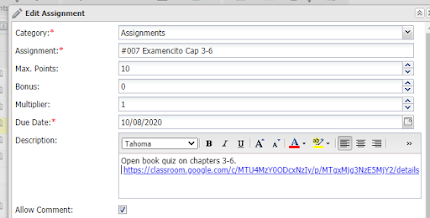
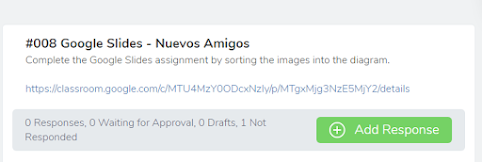
      • 📓Import assignment titles, point values, descriptions and due dates from Classroom to eSD 
      • 📓Option to have grades auto-synced at 7pm daily 
      • 📓Option for manual real-time syncing of scores


Learn how to Import Assignments & Sync Scores by: 

  • Watching the following video 📼
  • Clicking HERE for the slide deck instructions 📋
  • Attend the "live" demo at 1pm today 💻


Have you already tried the eSD Google Classroom Sync?   What tips and tricks can you share? Comment below!

Sunday, December 6, 2020

The Twelve Days of Teacher Tech 2020

 Follow along with this year's Twelve Days of Teacher Tech.  

A new bulb (tech tip) will appear on the tree every day until it is all lit up! 

Start by clicking on bulb #1.  Try out the tip.  Then email Jen T screenshot evidence!

Particpants will receive Techmas Goodies and be entered in for a prize!!! 


Tuesday, November 10, 2020

Screenshare with the ActivPanel

Hey There ActivPanel Teachers! 


Want to go wireless with your device?  

Want to have students project from their Chromebooks to share with the class their findings, and discoveries? 

With a recent update the panels have a new screenshare app that works with the Promethean Screen Share Chrome Extension. 


Anyone with a Chromebook can mirror their screen wirelessly to the ActivPanel.


Watch my video below to see how to:
  • find the Screen Share app on my panel
  • get the Chrome Extension
  • request to mirror my screen
  • accept the request on the panel


Want help with initial setup?   Need alternative options?

Be sure to post below how you already are using screen mirroring in your classroom!

Monday, November 9, 2020

SeeSaw Pin to Top


Pinning is super-popular in our tech world.  Pinterest, pinning tabs on our browser, and pinning posts on our Twitter feeds help to keep what is important in reach. 

Seesaw in September rolled out their version of a pinning feature which will keep a post at the top of the Journal or the Activiies tab. 


Some popular ideas for elementary pinning are: 

  • Bitmoji Classrooms
  • Frequently-Used Sites
  • Lesson Plans 
  • Today's Schedule / Specials 
  • General Announcements 
  • Lunch Menu 
  • Google Forms
    • Lunch Count
    • Social/Emotional Check 
  • Homework


What activities or posts do you "Pin to the Top"? 

Have any pro-tips? Post them in the comments!


Give me your best One-Liner: for Google Classroom Rubrics

Today we aren't talking about these one-liners... 


 I changed my password to "incorrect". So whenever I forget what it is the computer will say "Your password is incorrect".

My email password has been hacked. That's the third time I've had to rename the cat.

My mom said that if I don't get off my computer and do my homework she'll slam my head on the keyboard, but I think she's jokinfjreoiwjrtwe4to8rkljreun8f4ny84c8y4t58lym4wawt4mylt4amlathn...

CAPS LOCK – Preventing Login Since 1980.

Source onelinefun.com 

Instead, we are going to put a twist on a post from earlier this year, "I love Google Classroom Rubrics" .


As teachers we are fans of using rubrics for efficient grading and feedback. However, we can sometimes cringe at the thought of developing them.  

What if I told you that not every rubric had to be 5 columns by 5 rows? 

Google Classroom Rubrics can be one-liners! Quickly assess the "little" things while staying consistent with point values.   By adapting this one-liner rubric, you will save time "counting errors" and quickly communicate to the student if he/she is on the right track.  You will also have more time for the real-specific, personalized feedback that they need.


Check out this rubric I made for some quick "I can" checks in Google Classroom! 

It is 5 option multiple choice that quickly lets me assign the grade of  "0" "60" "B" "A" or "100%"


Make a copy of the one-liner rubric HERE.  Make your changes in Google Sheets, then add the rubric to a new or existsing Google Classroom Assignment. + Rubric > Import from Sheets


Have you heard about the single-column rubric
This is a great place to start for assignments that are multi-step or have several elements that need evaluated separately. Click HERE for a template that you can edit to get started. 


Or, for all of you go-getters, click HERE for a customizeable 5x5 rubric in Google Sheets.  Remember that your rows and columns do not have to have the same quantity of descriptors, nor do they have to have the same point values. (E.g. Content can be worth way more than design or spelling.) Simply delete cells that you aren't using.


This is now my 5th post to the TechSpot about rubrics.  If you don't see what you are looking for in this post, check out the archives.  Included in these posts is a link to roobrix, a tool to help you give numerical grade values to your rubrics.


Join the Google Classroom Rubric trend with others from our #GoDutch family!


Need help with your first one? - Send me your criteria and I will get you up and running to see if you like it! 

Keep it techie!

Jen


Tuesday, October 13, 2020

Copy a Direct Link to an Assignment


The three dots are magical!  

Anytime you see 3 dots you know that awesome options are just a click away!


The 3 dots on Google Classroom posts lead you to a menu with the option to 

Copy link.

When could this assignment url be useful for teachers and students? 


1. Remind - For teachers who push out communication reminders you can add the direct link to the assignment in your post! 
Help Center


2. Email - Keep the message clear. Include the url of the missing work right in the message to take them directly to the assignment! 
File:Gmail Icon.svg - Wikimedia Commons


3. eSD - Use the description textbox to insert the link to the assignment.

eSchoolData Help Center / eSchoolData Help Center


4. SeeSaw - Have an awesome Googley assignment that you need collaboration or a copy for each student?   Make it in Google Classroom, but post it in SeeSaw! (tip: post the link in the instructions - not under multimedia)
LPS Computing Services | Seesaw


4. Hyperdocs - Yes! This one is brilliant.  Hyperdocs offer a variety of learning activities for students, but as a teacher it can be hard to keep track of where all these great assignments are, designate sharing permissions and make each student a copy of files.   Hyperlink each activity and ta-da kids have the pedagogical benefits of the Hyperdoc and the organization Google Classroom simultaneously.
HyperDocs Academy | HyperDocs


Tuesday, October 6, 2020

I have a worksheet.... now what? Update 2020

 It is now one and a half years after our first "I have a worksheet... now what?" post.   

Back in May of 2019 we spoke of formatting Google Docs with textboxes for responses, using Google Forms as well as leveraging Add-Ons Such as Alice Keeler's Pull Table for digital worksheet completion.

Earlier that year we also looked into ClassKick  which provided a way for students to draw on top of PDFs and access a toolbar with text, scribble and audio recording features. 

Wizer.me made its debut to the TechSpot in 2017 creating a more interactive experience for the student, but with perhaps more upfront work for the teacher. 


Remote learning heightened our awareness and increased the need for taking our paper tasks and enabling their access digitally.  Previous mentioned methods became more popular, and Google Slides allowed us to create backgrounds with our activities and have students respond on top. 

But then, here last month TeacherMade came out with a web application that is exactly what teachers had been looking for.  A quick and easy way to upload a worksheet and have students write on top with little to no prep. 

Here in today's TechTuesday, instead of just introducing TeacherMade, I decided to take a paper worksheet that I had given my students this week as a pre-reading activity and put it to the test of 4 top digital worksheet tools. 

You can view the Google Slides presentation alone to see some screenshots of my results and/or follow along with me as I test each one in the Loom recording: 


Intro: 0:02   TeacherMade: 1:03   Google Slides: 7:00   ClassKick: 12:22  Google Forms: 16:58

Elementary teachers now have SeeSaw which enables them to push out a PDF for students to complete.  The above applications may have some features that could further enhance some of  your activities and certainly be assigned through your SeeSaw platform as well.   Is there anything that stands out to you? Let us know in the comments below! 

Have you been able to try any of these applications yet?
How did it go? 
Would you mind sharing a sample with us? 


As always I would love to hear how I can help you brainstorm new ways that technology can enhance and amplify what you do in the classroom! jtamburlin.youcanbook.me